 BUY NOW, PAY LATER. Starting at 0% APR


Thank you for your purchase of Maptuner X! The instructions contained in this document will help you get up and running quickly. You will need the code listed below to register your vehicle with Maptuner. Instructions on when to enter this code will be specified later in the instructions.
Ski-Doo (BRP) Maptuner X BRP
Installation instructions for the Maptuner X BRP on the Ski-Doo (BRP) (snowmobile). Parts, tools, and full procedure.
Before you start
Requirements
- WINDOWS BASED PC WITH WINDOWS 8 OR ABOVE OS
Customer Name:
License Code:
In the box
Parts and tools
Required accessories
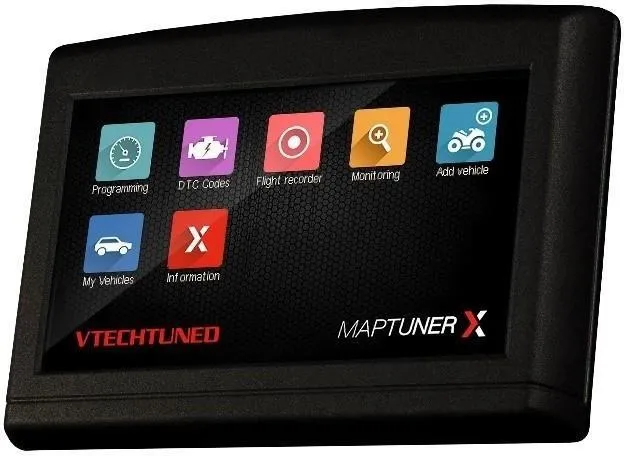
- MaptunerX
- USB- Cable
- MaptunerX BRP- Cable
- Ski-Doo Bypass/Programming Cable (2-Stroke Only)
Procedure
Installation
- Step 1
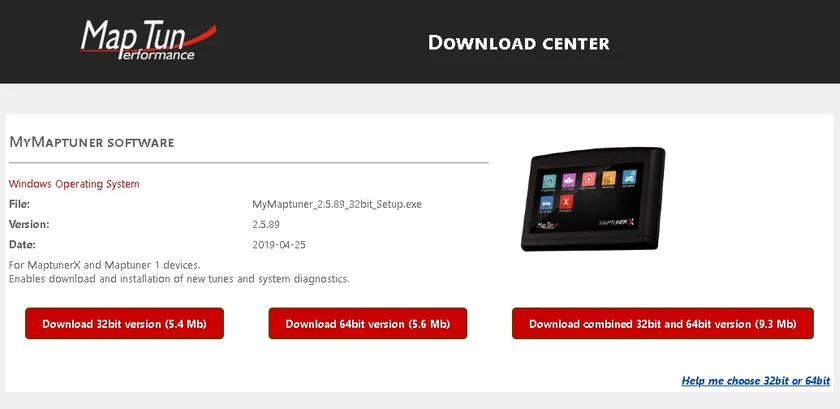
Download and install the MyMaptuner program from: https://maptuner.se/download/ Choose the version that corresponds to your Windows installation (32 or 64 bit). If you are unsure of how many bits it is your operating system is, follow the instructions below:
- Windows 10 users click the Windows button on the lower left of the screen, thenchoose Settings, then System, then on the left side of the screen, choose about –Look for System Type – it will show 32 or 64 bit.
- Windows 8 users, swipe in from the right edge of the screen, and then tap Search. Or, if you are using a mouse, point to the lower-right corner of the screen, and then click Search. Type system in the search box, and then tap or click Settings. Tap orclick System. If you are running a 64-bit version of Windows 8, 64-bit Operating System is displayed in the System type field under the System heading. If you are running a 32-bit version of Windows 8, 32-bit Operating System is displayed in the System type field under the System heading.
- Step 2
Once My Maptuner is installed on your computer, run the program.
- Step 3
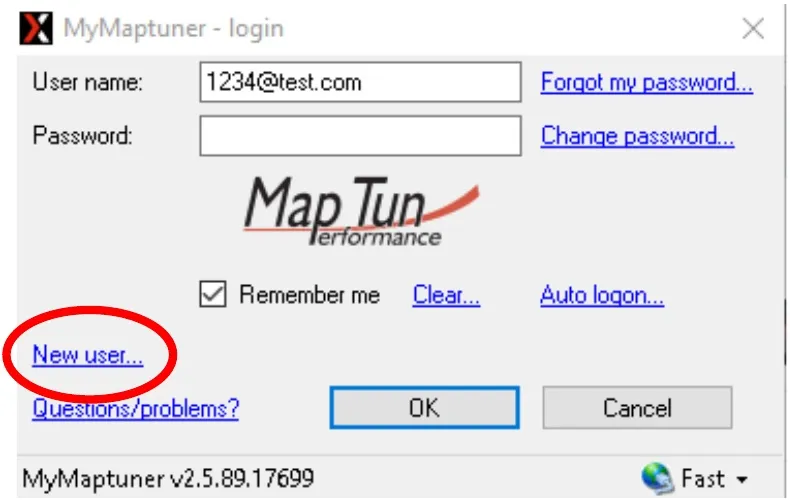
Click “New User” on the login screen
- Step 4
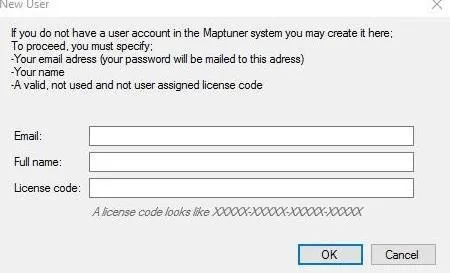
Enter your email address – this will be your username and is also where your login password is sent, so make sure this is entered correctly!
- Step 5
Enter your first and last name and license code (usually emailed to you) Once complete, select OK.
- Step 6
Connect your MaptunerX to PC and click on “Synchronize”. MaptunerX will now go online and update to latest firmware.
- Step 7
Disconnect MaptunerX from PC and connect to your vehicles OBD- connector.
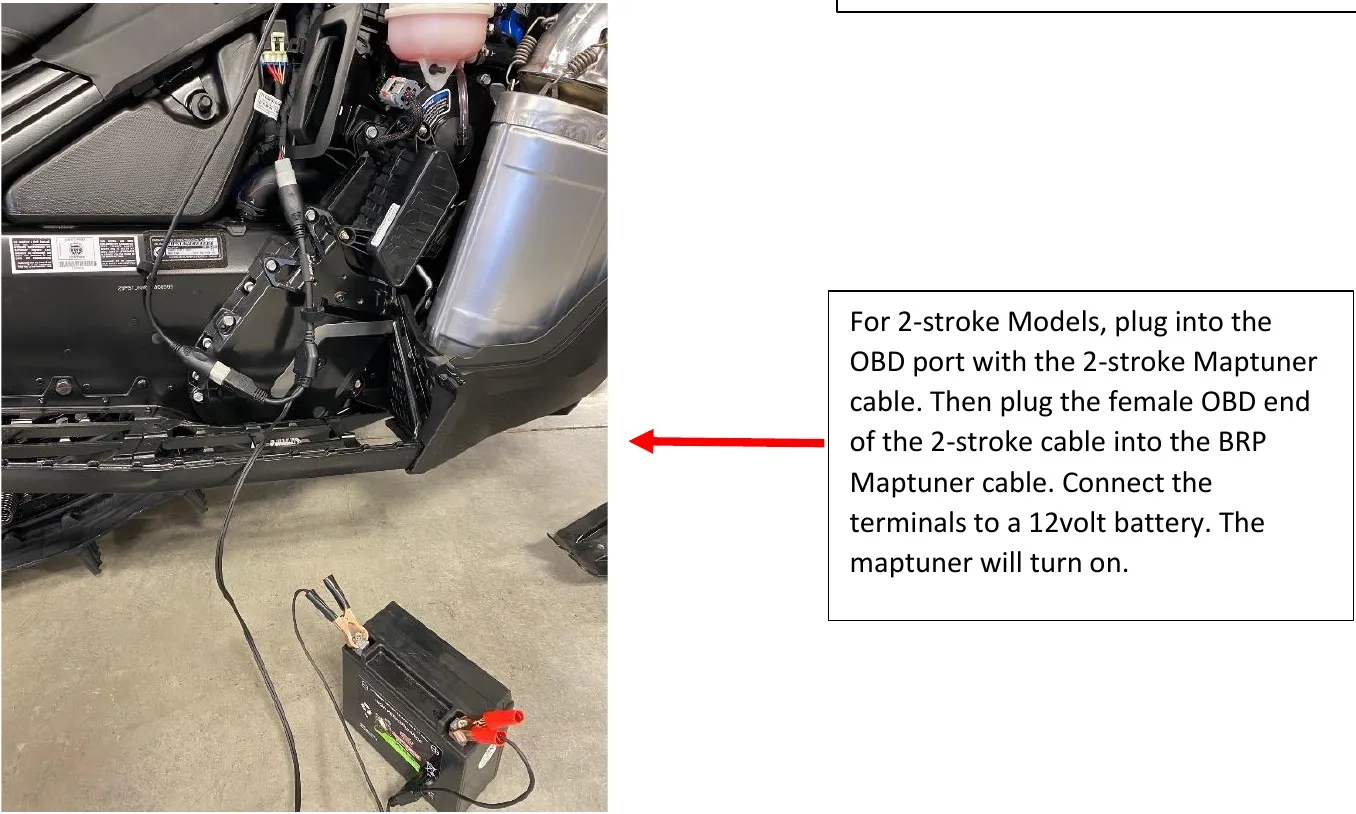
- Plug the HDMI end into the bottom of the Maptuner. The other end plugs into the diagnostic port on the vehicle. On the 2-stroke models, cable 01-MT031, connect the terminal ends to a battery LAST. Connect the cable to the snowmobiles diagnostic port and connect the other end to the BRP cable connected to the Maptuner.
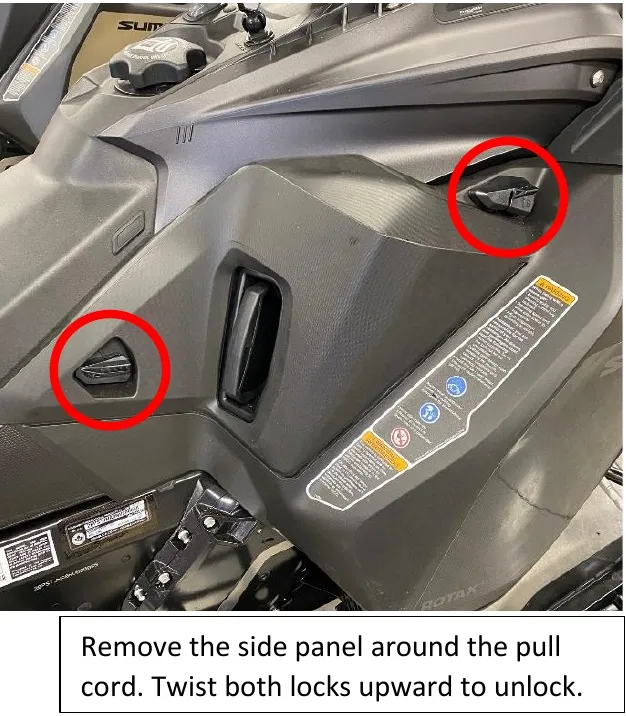
Remove the side panel around the pull cord. Twist both locks upward to unlock. 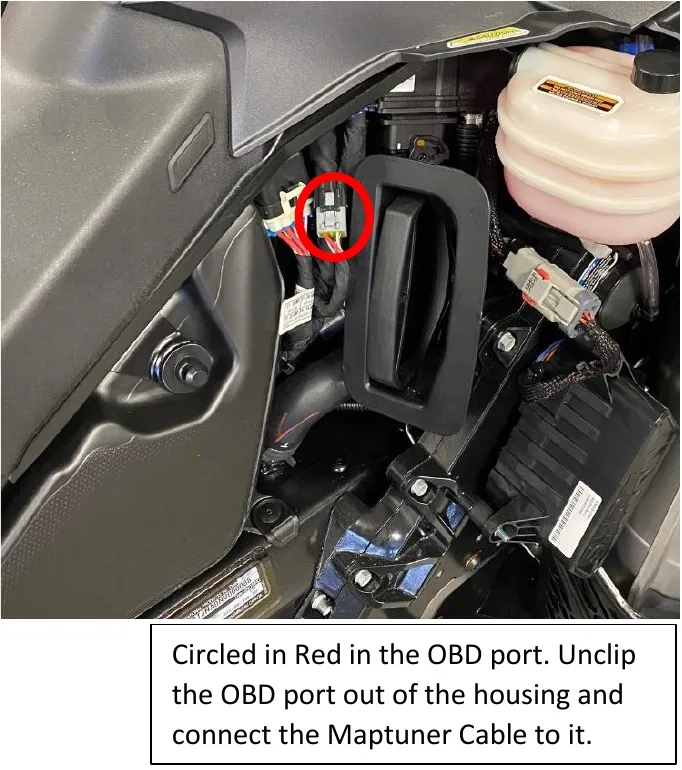
Circled in Red in the OBD port. Unclip the OBD port out of the housing and connect the Maptuner Cable to it. 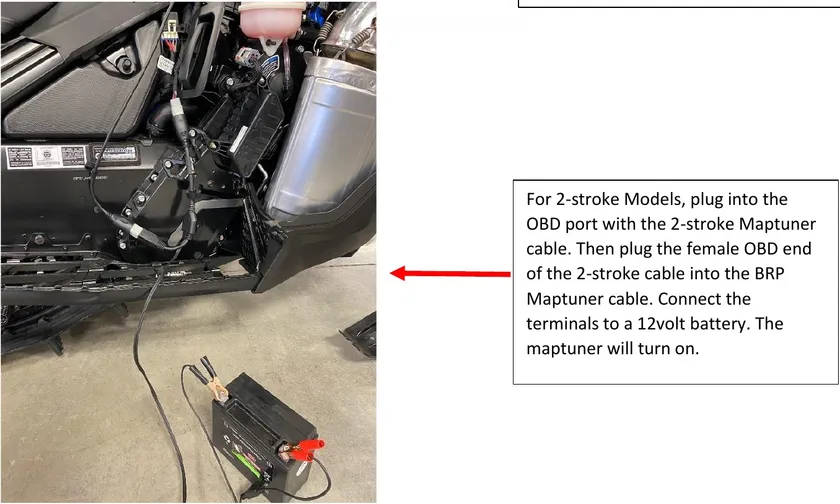
For 2-stroke Models, plug into the OBD port with the 2-stroke Maptuner cable. Then plug the female OBD end of the 2-stroke cable into the BRP Maptuner cable. Connect the terminals to a 12volt battery. The maptuner will turn on. - Step 8
Turn the vehicle to the “ON” position – on Skidoo 900 ACE push the start button so the dash lights up, DO NOT start the vehicle. On 2-stroke models, connecting the cable terminals to the battery will power the Maptuner.
- Step 9
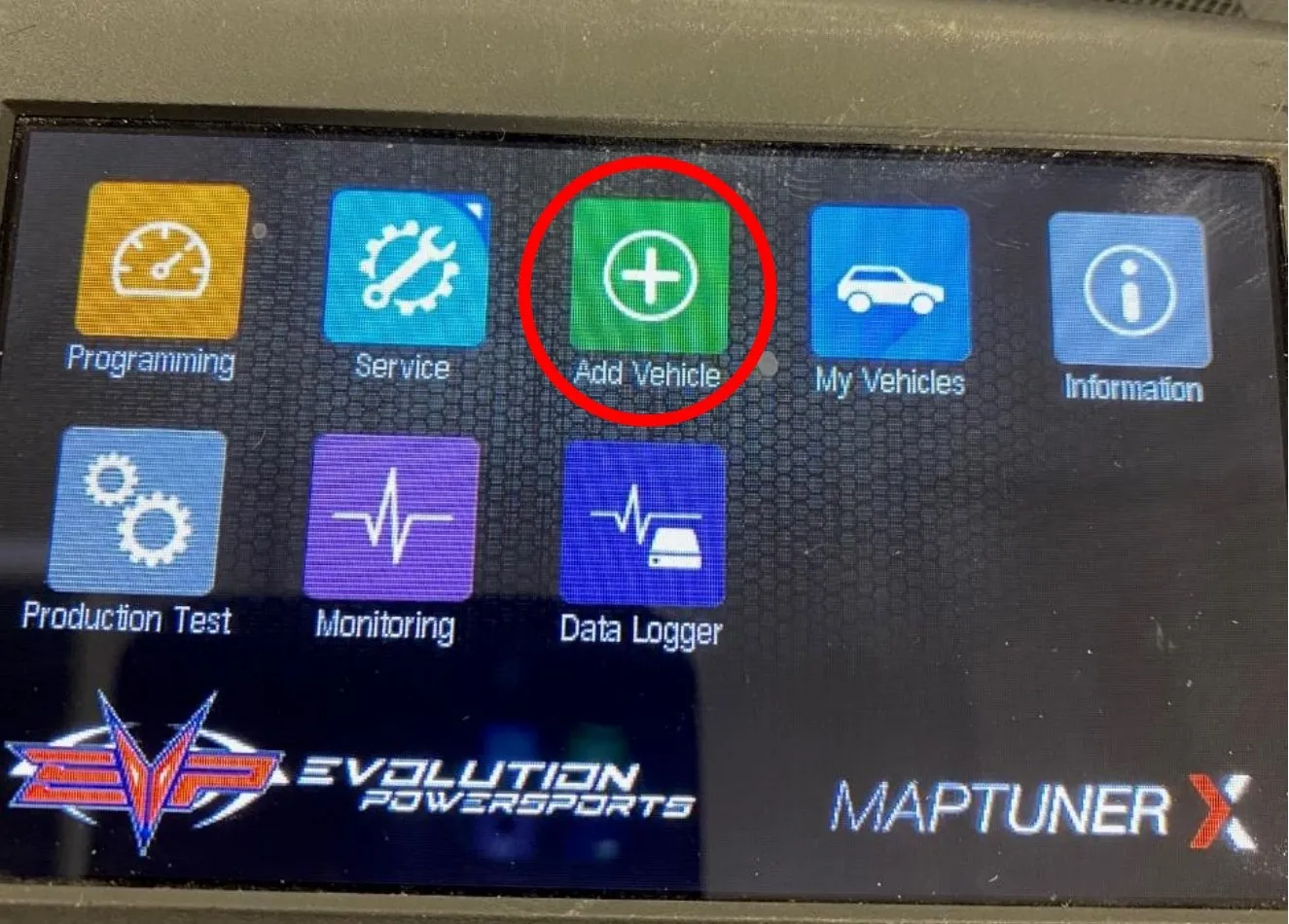
The Maptuner screen will power up and have a few icons on the screen. Click “Add Vehicle” icon and follow the on-screen instructions. It will take 30-60 seconds to fully register a vehicle.
Click on “Add Vehicle Icon” 
Your vehicle will be stored in “My Vehicles Icon” 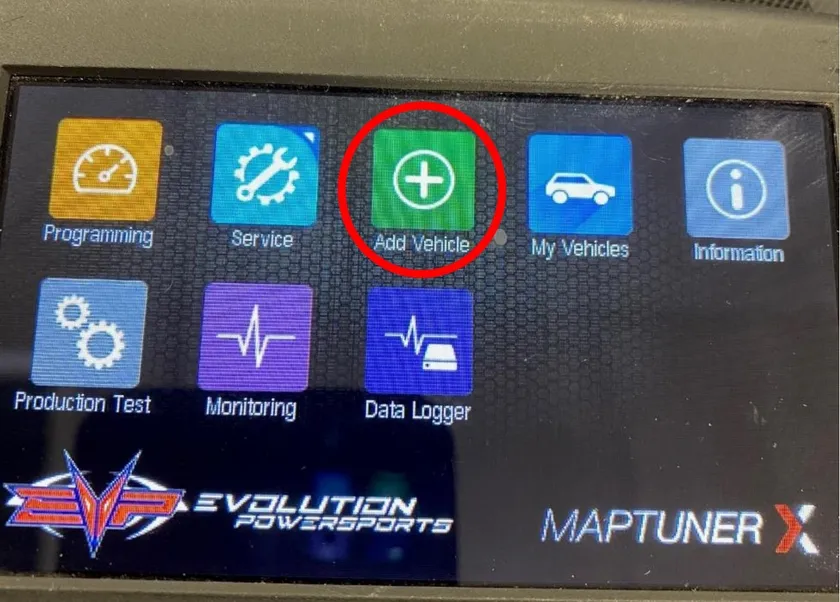
- Step 10
Once complete, disconnect Maptuner from the vehicle and bring it to your computer.
- Step 11
Synchronizing puts your vehicle specifications and vin# on our server – this ensures the correct tuning for your vehicle is selected. My Maptuner will download a Stage 1 tune by default.
- Step 12
After step 11 is complete, there is no need for a PC computer anymore unless you are upgrading/updating tunes, adding another vehicle or adding features. In other words, the tuningfiles are stored on your Maptuner and your vehicle can be flashed anytime or anywhere without internet or a PC. If you have multiple vehicles, they can also be flashed in this same manner.
- Step 13
You may now program your vehicle by connecting your Maptuner to the diagnostic port again.Switch the key to the “ON” position or press “START” momentarily to light up the dash.
- DO NOT START THE VEHICLE! On the Maptuner display, press ”My Vehicles App” and make sure the correct VIN is active. Press the “Programming Icon” button and follow the on-screen instructions.
“Vehicle App” to make sure the correct VIN is active. 
“Programming App” to select the tune you want to flash. - Step 14
Once Tuning is complete you can erase your vehicle error codes.

Press Service APP to enter your MaptunerX Service Folder. 
Press Fault Codes APP then Read and Clear your codes.
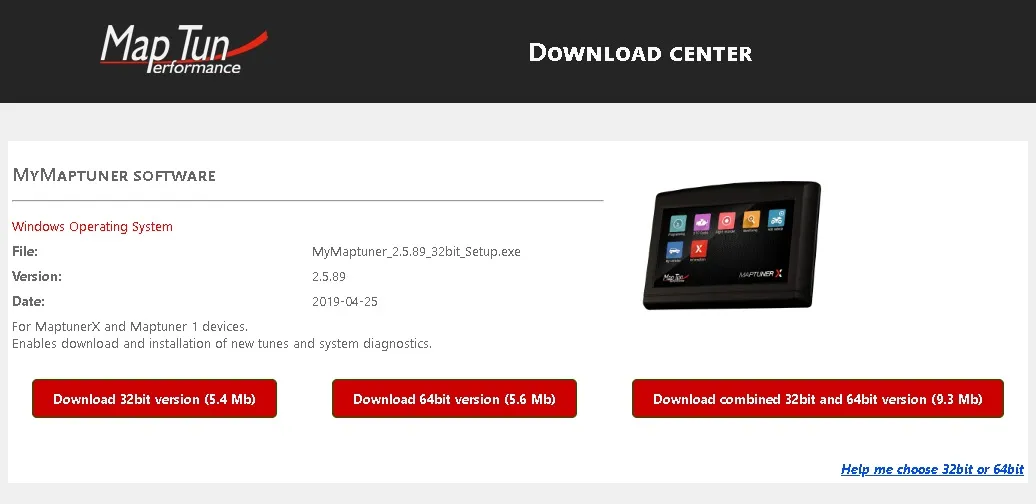
When you’re done
After installation
Installing the wrong tune for your hardware setup may lead to poor performanceand/or engine damage.
Emissions notice. This product is exempt from the emission standards and related requirements of 40 C.F.R. § 1051 as provided by 40 C.F.R. § 1051.620, and California law [e.g., vehicle code §§ 27156 and 38391]. This product is sold only for use in connection with EPA certified, purpose-built, nonroad vehicles used solely for closed course, nonroad competition/racing and not used for any recreational purpose or on public highways or right of ways maintained by and open to the public. This product is sold only in connection with machines that do not fall under state and/or federal noise or emission standards/regulations. Purchasers who/that purchase this product represent and warrant that the product is purchased only in connection with EPA-certified, emission-regulations-exempt and noise-regulations-exempt competition/racing vehicles as interpreted under applicable state and/or federal law.
Need technical support?
Submit a ticket with your vehicle and what you're seeing, and our support team will get back to you.
