 BUY NOW, PAY LATER. Starting at 0% APR


Can-Am Maverick X3 AIM Solo 2 DL Data Logger
Set up the AIM Solo 2 DL data logger on the Can-Am Maverick X3 — install RaceStudio 3, record logs, and download data.
Setup and data-logging instructions for the AIM Solo 2 DL GPS Lap Timer / digital logger used with the Can-Am Maverick X3. Covers installing RaceStudio 3 software, recording a data log on the vehicle, retrieving the log over WiFi, and sending the log file to EVP for analysis.
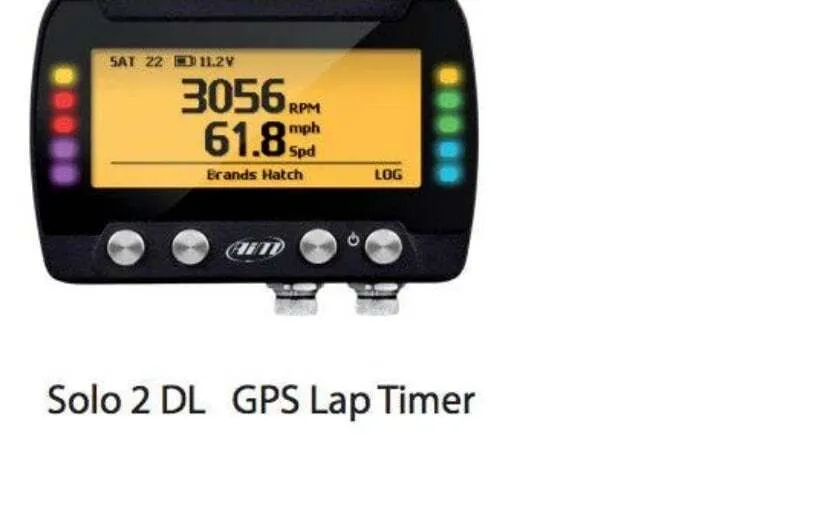
AIM Solo 2 DL GPS Lap Timer device front view (display showing RPM and speed)
RaceStudio 3 Install
- Navigate to https://www.aim-sportline.com/en/sw-fw-download.htm
- Select Download for RaceStudio 3
- Select the latest version. (Download RaceStudio 3 Release. Current release AIM strongly recommends you to install. RaceStudio3 3.70.46 (September 5th, 2024). Previous releases: RaceStudio3 3.70.44 (August 28th, 2024); RaceStudio3 3.70.30 (July 30th, 2024).)
- Navigate to your pcs downloads folder
- Double click or right click and select open to run install
- Select Yes to allow install to run (User Account Control: Do you want to allow this app to make changes to your device? RaceStudio 3. Verified publisher: AIM TECH srl. File origin: Downloaded from the Internet.)
- Select Next when install wizard appears (Welcome to the RaceStudio 3 Setup Wizard. The Setup Wizard will install RaceStudio 3 on your computer. Click "Next" to continue or "Cancel" to exit the Setup Wizard.)
- Select Next to leave default install folder location (Select Installation Folder. This is the folder where RaceStudio 3 will be installed. Folder: C:\AIM_SPORT\RaceStudio3\)
- Select Radial to accept terms and select Install to begin install process. (End-User License Agreement. Please read the following license agreement carefully. GENERAL TERMS AND CONDITIONS OF USE. Select "I accept the terms in the License Agreement".)
- Wait for install to complete (Installing RaceStudio 3. Please wait while the Setup Wizard installs RaceStudio 3. This may take several minutes. Status: Extracting files from archive)
- Select Finish to close and launch RaceStudio3 (Completing the RaceStudio 3 Setup Wizard. Click the "Finish" button to exit the Setup Wizard. Launch RaceStudio 3 [checkbox checked].)
Data Logs Steps
- Make sure AIM is fully charged (50% or higher)
- Connect AIM to diagnostic port
- Start vehicle (aim will automatically turn on)
- Wait for track search to complete
- Or skip by pressing the farthest right button on the AIM twice in session to exit
- Verify log is showing in bottom right corner
- Make a pull/pass/run
- Shut vehicle off (AIM will stay on for 10 minutes)
- Follow Data Log Retrieval steps to download and send data log to be analyzed
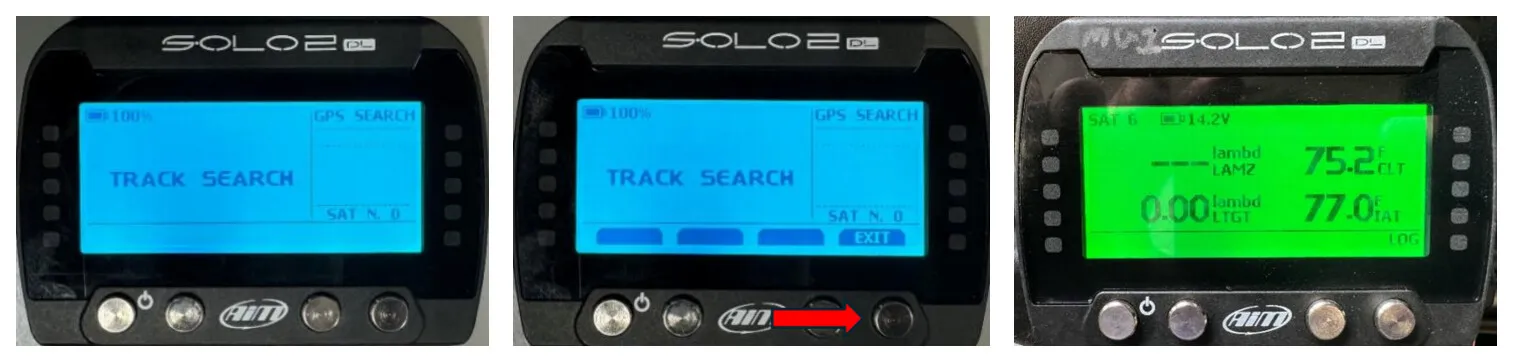
AIM screens: TRACK SEARCH in progress, exit by pressing right button twice, and log indicator in bottom right corner
Data Log Retrieval Steps
- Open Race Studio 3 (RaceStudio 3)
- Click on WiFi icon at top right-hand corner (WiFi and Ethernet Settings... AIM-SOLO2DL-513474-EVP)
- Click connect on your AIM (AIM-SOLO2DL-513474-EVP, Connect)
- Select Configuration at the top left-hand corner. (RaceStudio3 (64 bit) 3.69.00)
- Select your AIM from device list below. (All Configurations; Manual Collections; Connected Devices: EVP)
- Select Data Download from top section (EVP (WiFi); tabs: Live Measures, Data Download, [Properties], Settings, Tracks, Predictive Reference Lap, Counters, Logo, Firmware; buttons: Data Download, Unhide Downloaded, Delete, Refresh List)
- Select the check box next to the data log you'd like to download and send. (e.g. Sep 03 4 PM, session a_0463.xrz, 238.73 kB)
- Select Data Download Note the Number on the file your download this example is a_0463 (this will be needed later) (file a_0463.xrz, 238.73 kB)
- Add Racer Name, Number, and Comments.
- These are all optional but helps keep files organized.
- Comments can be used to describe issue and what tune machine has.
- Once Info is filled out select OK (Choose values for downloaded files(s) properties — EVP. Fields: Racer = EVP; Vehicle = Booster; Championship; Session Type; Track (for RS2A); Comment. Select OK.)
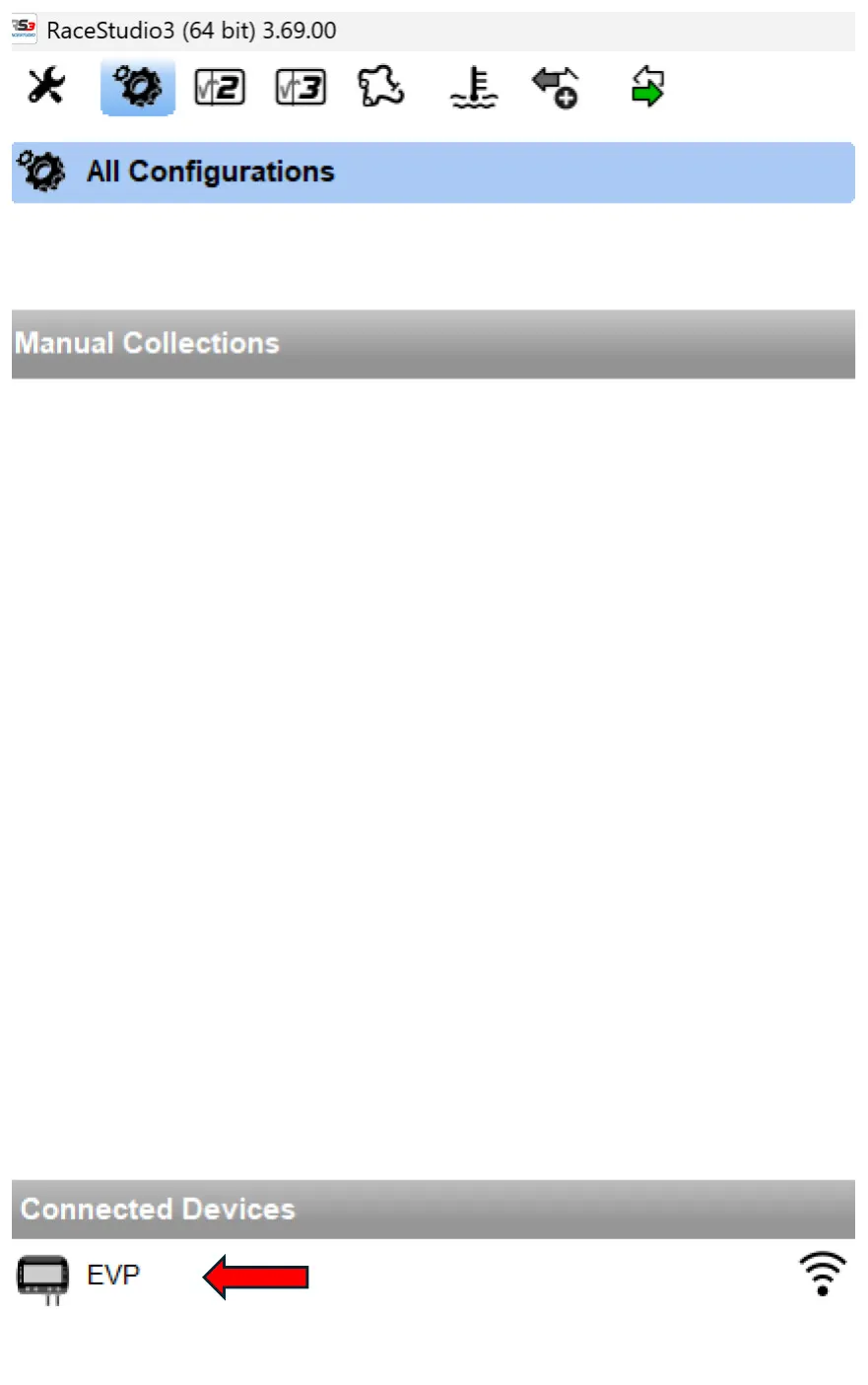
Configuration toolbar with All Configurations / Connected Devices (EVP) selection
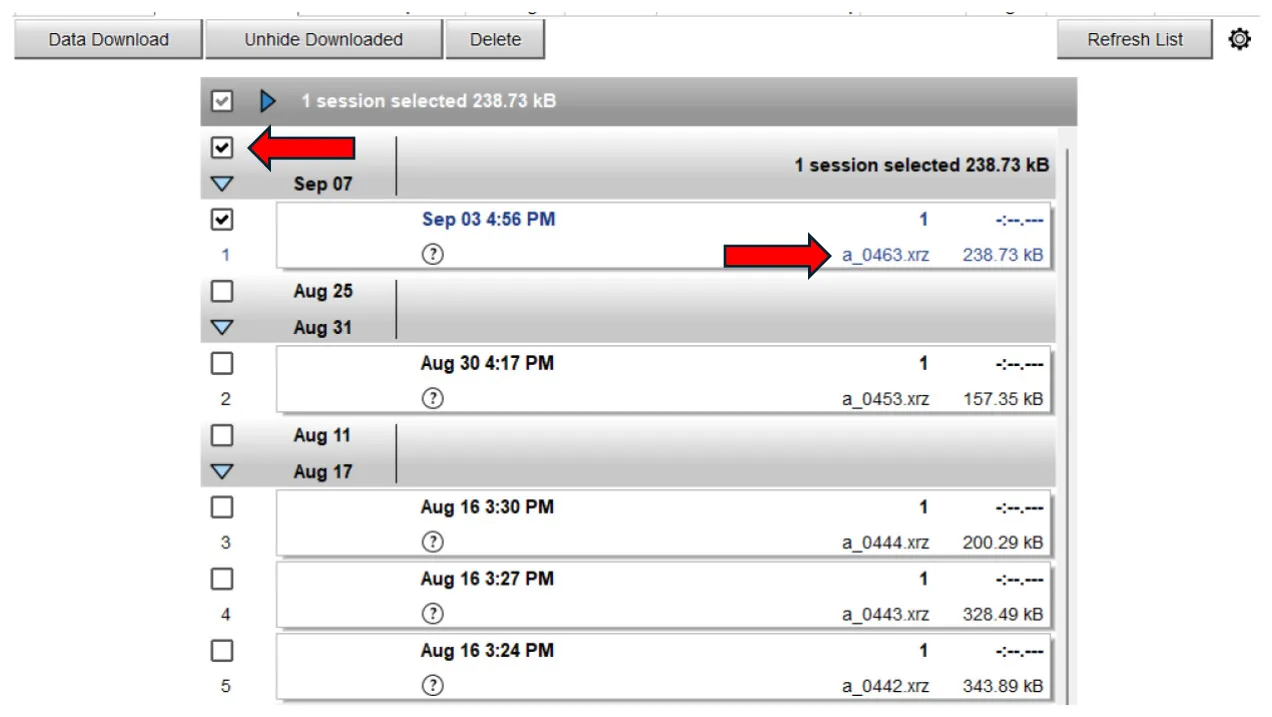
Data Download session list; select check box and note file number a_0463.xrz (238.73 kB)
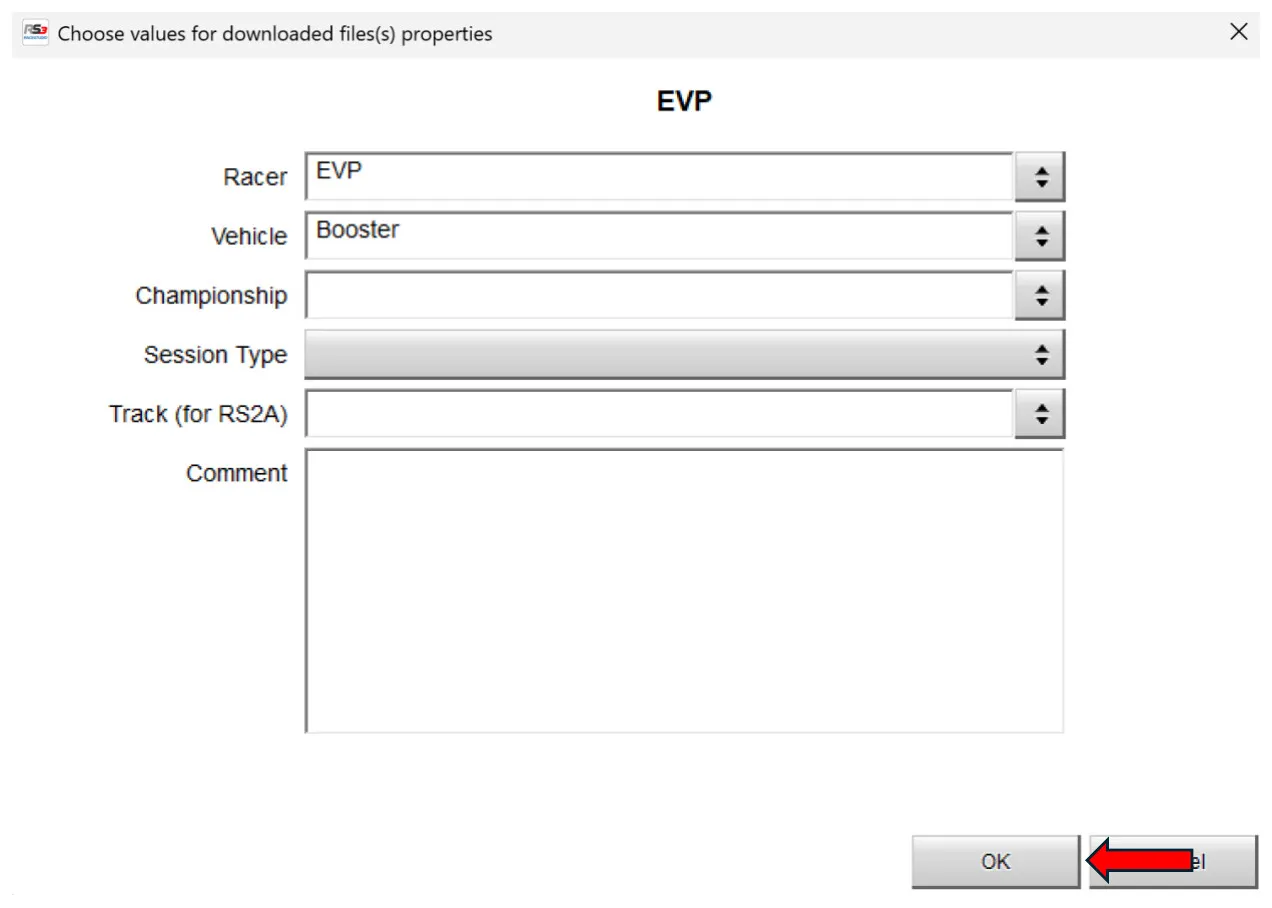
Choose values for downloaded file(s) properties dialog (Racer, Vehicle, Comment) — select OK
File selection option 1
- Navigate to the AIM install folder, default is C:\AIM_SPORT\RaceStudio3\user\data
- Select the date folder for data log you want to send. (Local Disk (C:) > AIM_SPORT > RaceStudio3 > user > data)
- In the date folder select the Racers Name you entered (e.g. data > 2024-09-03 > EVP)
- In the Racers folder select the drk and Aim XRK file type for the data log number that you want to send, in this example it's a_0463. (AIM_SPORT > RaceStudio3 > user > data > 2024-09-03 > EVP; select EVP_Booster_a_0463.drk [DRK File] and EVP_Booster_a_0463 [AiM XRK logged data...])
- Copy these with either Ctrl+c or right click and select copy.
- Connect back to WiFi to send email.
- Attached both of these to a support ticket
File selection option 2 "if RaceStudio2 Analysis is installed"
- Select RaceStudio2 (Launch RaceStudio2 Analysis)
- Right click on the data log & select open test folder (Test name list, e.g. EVP_Booster_a_0463; right-click menu: Open test, Test properties, Remove test, Export test, e-Mail test, Open test folder)
- Select the drk and Aim XRK file type for the data log number that you want to send, in this example it's a_0463. (AIM_SPORT > RaceStudio3 > user > data > 2024-09-03 > EVP; select EVP_Booster_a_0463.drk [DRK File] and EVP_Booster_a_0463 [AiM XRK logged data...])
- Copy these with either Ctrl+c or right click and select copy.
- Connect back to WiFi to send email.
- Attached both of these to a support ticket
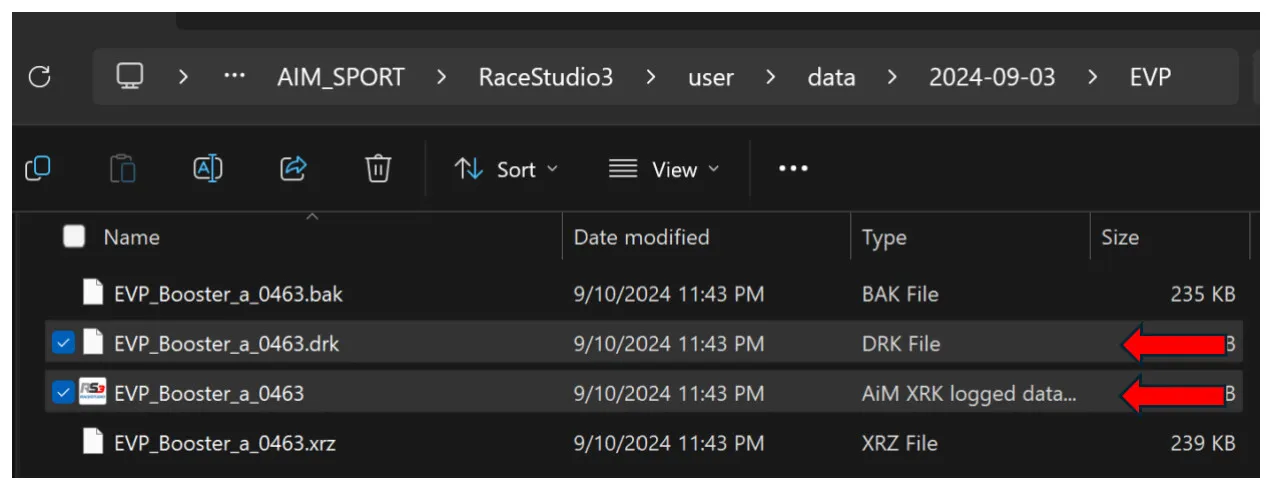
Explorer file list: select the .drk (DRK File) and AiM XRK logged data files for a_0463
Need technical support?
Submit a ticket with your vehicle and what you're seeing, and our support team will get back to you.
